Accessible single-page applications: what each router does on a route change, and how to fix the gap
A link click in an app with a client-side router looks like a new page and sounds like nothing at all. Here is what each popular router does about that, and the small patch that closes the gap.
What do accessible single-page applications have to do on every route change?#
Accessible single-page applications do two jobs on every client-side route change that a full page load used to do for free: announce the new page and move focus into it. A paper posted to arXiv on 19 February 2026 names the cause: in Angular apps, "client-side routing does not trigger a full-page reload". As a result, screen reader users have to manage focus to avoid getting lost.
The SvelteKit accessibility docs describe what the old page load did. On a server-rendered site, the screen reader reads the new page's title. Also, every navigation resets focus to the top of the page. However, a router that swaps the view in place does neither. The URL and the content change, yet the screen reader stays silent. Meanwhile, focus stays on the link that was clicked, or drops to the body when that link is removed.
So the whole fix for accessible single-page applications has two parts. First, give each route a title and make sure something reads it out. Second, move focus to a sensible place in the new view. Everything else in this guide is detail on those two jobs, plus the status messages that appear inside a view.
What does a silent route change cost the people using your app?#
In WebAIM's Screen Reader User Survey #11, 67.8% of respondents said they navigate by headings first on a long page, so focus stranded on a stale link breaks their first move. The survey ran from July to August 2026 and drew 1,780 valid responses.
Headings are the main road for most screen reader users, so focus stranded in the header blocks that road.
Show data table
| Item | Value |
|---|---|
| Navigate through the headings | 67.8% |
| Use the Find feature | 12.5% |
| Read through the page | 9.7% |
| Navigate through the links | 6.7% |
| Navigate through the landmarks or regions | 3.4% |
Headings come first for two in three screen reader users.
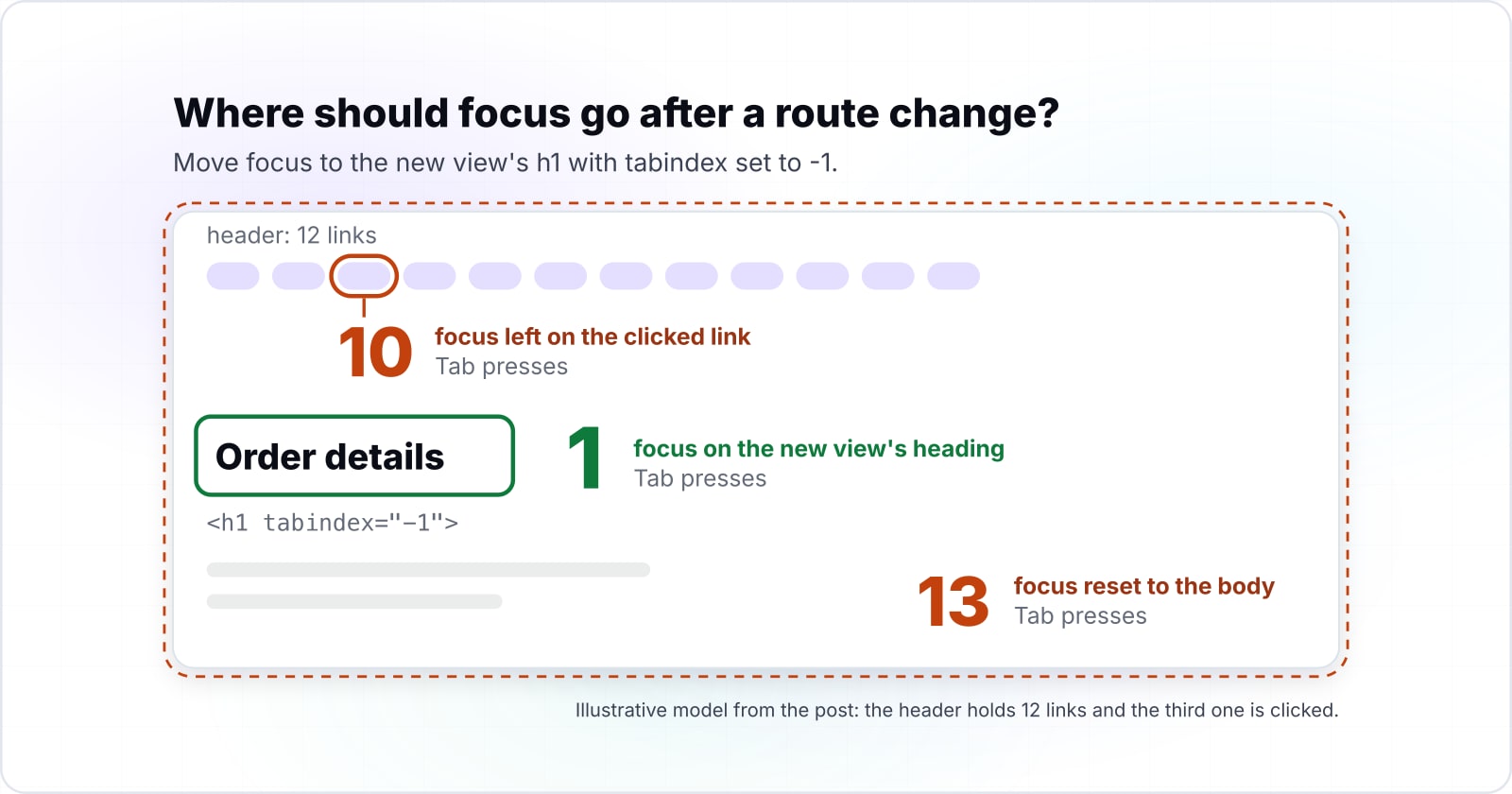
The cost for keyboard users is easy to count. Say your persistent header holds 12 links and someone activates the third one. On a router that does nothing with focus, focus stays on that third link. Then it takes 10 Tab presses to reach the first link in the new content. Meanwhile, a reset to the body sends them through all 12 header links again. That is 13 presses to the first link in the content. In contrast, a focused main heading puts them one Tab from the new content. In this example, that difference repeats on every navigation, all day.
Tab presses to the new content
Set how many links your persistent header holds and which one was activated; it counts the Tab presses to the first link in the new content for three focus choices.
Focus left on the clicked link
10
- Focus reset to the body
- 13
- Focus on the new view's heading
- 1
An illustrative model of the worked example above, not a measurement.
What does your framework already do when the route changes?#
Next.js, SvelteKit and Nuxt can announce a route change for you, while React Router, Angular and Vue Router leave both the announcement and the focus move to your code. The details differ, and two of them disagree outright.
The Next.js accessibility docs say the framework "includes a route announcer by default". Its App Router source creates a hidden region with aria-live set to assertive and role set to alert. But it does not move focus. The SvelteKit docs say it "injects a live region onto the page" that reads the title. It also focuses the body after each navigation. Nuxt's NuxtRouteAnnouncer is optional, arrived in version 3.12 and defaults to polite.
Meanwhile, the React Router docs say it "doesn't make any assumptions about your UI as the route changes". Angular updates the document title from each route's title, but focus is your job. Vue Router offers a scrollBehavior option for scroll position and nothing for focus.
| Router | Announces the new page | Moves focus |
|---|---|---|
| Next.js | Yes, by default, assertive | No |
| SvelteKit | Yes, reads the title | Yes, to the body |
| Nuxt | Opt-in component from 3.12, polite | No |
| React Router | No | No |
| Angular | Sets the title only | No |
| Vue Router | No | No |
Source: each framework's own documentation and source, read October 2026.
The contradiction sits between SvelteKit and Angular. SvelteKit focuses the body by design. However, the Angular accessibility guide says "avoid situations where focus returns to the body element after a route change". Both cannot be the right target.
Where should focus go after a route change?#
Move focus to the new view's h1 with tabindex set to -1, because user testing found a focused heading the clearest signal of a new page. Gatsby ran user tests with people with disabilities in July 2019. There, "Focusing on a heading was found to be the best experience", since it saved time and made the change clear.
The same tests ranked the other targets lower. For example, focusing a wrapper around the new content worked but felt subtle, while a reset to the top felt overwhelming. In contrast, SvelteKit's body focus copies the old page load, which is safe but slow. So Angular's advice to avoid it is the better default.
The survey numbers point the same way, even though heading use slipped a little between the last two WebAIM surveys.
Show data table
| Dimension | Survey #10, 2024 | Survey #11, 2026 |
|---|---|---|
| Headings first on a lengthy page | 71.6% | 67.8% |
| Landmarks or regions used always or often | 31.8% | 28.3% |
Headings still lead by a wide margin, while landmark use falls.
Because headings remain the main road while landmark use falls, the heading matches how people already move. The tabindex="-1" attribute lets a script focus the heading without adding it to the Tab order. Also, keep a visible focus ring on it, because a sighted keyboard user needs to see where focus went. The WCAG 2.2 Understanding page for Focus Order asks that focus moves in an order that keeps meaning. A focus point inside the new content does that.
How should the new page name be announced?#
Give every route a unique, descriptive document title, because the Next.js, SvelteKit and Nuxt announcers all read the title before anything else. The Next.js docs say its announcer "looks for the page name to announce by first inspecting document.title", then the h1, then the URL path.
The WCAG 2.2 Understanding page for Page Titled sets the bar. Pages "have titles that describe topic or purpose." In practice, that means "Order details, Your account" and not "My App" on every view. Angular makes this a route setting, so each entry in the route definitions can carry a title. Also, a TitleStrategy can add a suffix across the app.
The politeness setting matters less than the title, but it still differs between frameworks. Next.js uses an assertive alert, while Nuxt defaults to polite. MDN's live regions guide says assertive "should only be used for time-sensitive/critical notifications". After all, it cuts off speech already under way. Therefore, polite is the safer choice when you build your own announcer.
When your router has no announcer, you have two options. First, you can move focus to the new heading, which makes the screen reader read it. Second, you can add one polite live region to the app shell and write the new title into it. Doing both is fine, as long as the two do not read the same text twice.
How do you announce loading, results and errors without a route change?#
An update inside a view, such as a result count or a save error, is a status message under WCAG 2.2 Success Criterion 4.1.3 and needs a live region already in the page. The Understanding page for Status Messages gives "18 results returned" as an example. It says such messages reach the user "without receiving focus."
So, keep route announcements and status messages apart. A route change is a change of context, and focus plus the title handle it. By contrast, a status message leaves the user where they are and only tells them something changed.
Each framework ships a helper for this. For example, Angular's CDK offers LiveAnnouncer. Its docs say it "is used to announce messages for screen-reader users using an aria-live region". The Angular guide also asks you to wrap @defer blocks in live regions, because lazy content may load in silence. Meanwhile, Nuxt points in-page changes to NuxtAnnouncer and the useAnnouncer composable instead of the route announcer.
| Route change | Status message | |
|---|---|---|
| What it is | A change of context | A message that leaves the user where they are |
| What handles it | Focus plus the title | A live region already in the page |
| Framework helper | NuxtRouteAnnouncer, the Next.js and SvelteKit announcers | Angular CDK LiveAnnouncer, NuxtAnnouncer and useAnnouncer |
The one rule that catches most bugs is simple: the region must exist before the message arrives. In MDN's words, "Establish the live region before updating its content." The live regions guide covers the mechanics, from role="status" to aria-atomic, so they are not repeated here.
How much ARIA does a single-page application actually need?#
Less than most apps ship: WebAIM's February 2026 scan of one million home pages found pages with ARIA averaged 59.1 detected errors against 42 without. That works out to about 17 more potential barriers on each page that uses it.
59.1
Home pages with ARIA
42
Home pages without ARIA
More ARIA, more detected errors, on pages that are also more complex.
Show data table
| Option | average detected errors per home page |
|---|---|
| Home pages with ARIA | 59.1 |
| Home pages without ARIA | 42 |
Source: WebAIM Million, February 2026
The WebAIM Million report adds a caution. This "does not necessarily mean that ARIA introduced these errors", because those pages were also more complex. Even so, the pattern holds across the scan, and it is a good reason to reach for native HTML first.
Native elements already carry their roles and states. A real link, a button and a heading need no ARIA to work. As a result, a single-page application mostly needs ARIA in two places: the live region for status messages, and aria-current on the link for the current view. Angular sets that through ariaCurrentWhenActive on RouterLinkActive. Also, React Router's NavLink gives assistive technology context "when the link points to the current page."
Which framework pages should you build the fix from?#
Build from your own router's documentation first, then from the WCAG 2.2 Understanding pages that define what a correct result looks like. Each page below gives you one thing.
- Angular accessibility best practices: the
NavigationEndexample that finds and focuses the main heading. - Angular route definitions: the
titleproperty on each route and theTitleStrategyclass. - SvelteKit accessibility: the
afterNavigatehook for moving focus somewhere other than the body. - Next.js accessibility: how the built-in route announcer picks the text it reads.
- NuxtRouteAnnouncer: the component and its
politenessprop. - Vue accessibility guide: a watcher on the route that moves focus after each change.
- React Router accessibility: the list of jobs the app owns once the client scripts load.
Then read the Focus Order and Status Messages pages once, because they define what passing means.
What is the smallest route-change handler that works?#
In Angular, four lines on the router's NavigationEnd event find the new view's heading and focus it, and the route's title property names the page. The code below follows the Angular docs and adds a title to each route.
// app.routes.ts: one descriptive title per route
import {Routes} from '@angular/router';
import {Home} from './home';
import {Blog} from './home/blog';

export const routes: Routes = [
  {path: '', component: Home, title: 'Home'},
  {path: 'blog', component: Blog, title: 'Blog'},
];

// app.ts: focus the new view's heading after every navigation
import {Component, inject} from '@angular/core';
import {NavigationEnd, Router, RouterOutlet} from '@angular/router';

@Component({
  selector: 'app-root',
  imports: [RouterOutlet],
  template: '<router-outlet />',
})
export class App {
  private router = inject(Router);

  constructor() {
    this.router.events.subscribe((e) => {
      if (e instanceof NavigationEnd) {
        const mainHeader = document.querySelector<HTMLElement>('#main-content-header');
        mainHeader?.focus();
      }
    });
  }
}

// In each view's template: <h1 id="main-content-header" tabindex="-1">Blog</h1>
The steps are the same in any router. First, wait for the navigation to end. Then, find the new main heading. Finally, focus it, with tabindex="-1" on the heading so the call works. In SvelteKit, the same steps go inside afterNavigate from $app/navigation. In Vue, they go in a watcher on route.path, but the Vue guide moves focus to the page top instead.
How do you test a route change in five minutes?#
Navigate with the keyboard alone, press Tab once after each route change, then repeat with a screen reader and listen for the new page name. That short loop checks both jobs at once.
After one navigation, ask four questions. First, where is focus now, and can you see it? Second, does the next Tab reach something inside the new content? Third, does the screen reader say the new page name, once? Fourth, did the browser tab show a new, descriptive title?
Where is focus now, and can you see it?
Press nothing yet; look for the focus ring.
Does the next Tab reach something inside the new content?
Press Tab once.
Does the screen reader say the new page name, once?
Repeat the navigation with a screen reader on.
Did the browser tab show a new, descriptive title?
Check the tab, not only the heading.
A pass on all four meets the intent of Focus Order and Page Titled for that route. Then repeat for a route that loads data, and listen for the status message as well. Because many screen reader users move by headings first, press the heading key once and expect the new h1.
The screen reader compatibility testing guide turns this into a full plan across screen reader and browser pairs. Also, the accessibility testing guide shows where it fits in a wider test process.
When is client-side routing the wrong tool?#
When most of your views are documents rather than application state, plain page loads announce the title and reset focus with no router code at all. The SvelteKit docs describe both halves for server-rendered navigation, and the Next.js docs describe the title half.
Three cases call for a different choice. For example, a marketing site or a docs site is mostly reading. So plain links and server rendering give you both jobs for free. Next, a form flow of three or four steps works well as separate pages, since each step gets its own title. Finally, a dashboard with heavy state between views is where a client-side router earns its cost and the patch pays off.
| Kind of app | Better choice | Why |
|---|---|---|
| Marketing site or docs site | Plain links and server rendering | Mostly reading, so page loads do both jobs for free |
| Form flow of three or four steps | Separate pages | Each step gets its own title |
| Dashboard with heavy state between views | Client-side router plus the patch | Here the router earns its cost |
In short, if the app would work as plain pages, the most accessible single-page applications may be no single-page applications at all.
What should you read next?#
Three related guides go deeper on live regions, visible focus and screen reader testing, the three places a route-change fix usually needs more work. Start with the one that matches the job still weak.
If announcements are weak, the live regions guide explains polite and assertive regions and why a region must exist before its text. When focus is the problem, the focus and focus-visible guide shows how to keep a ring on a focused heading. And for testing, the screen reader guide above turns the four questions into a repeatable plan.
Some teams prefer outside help. Atyantik runs accessibility testing on web apps and supports WCAG and ADA compliance work. Still, the framework docs linked above hold everything needed to ship the fix yourself.