Screen reader compatibility testing: a five-check loop for NVDA, JAWS, VoiceOver and TalkBack
A green scan cannot tell you what a blind user hears when they press a button. A short loop can: the same five checks, in the screen readers people actually use, written down against the Web Content Accessibility Guidelines (WCAG) 2.2.
What is screen reader compatibility testing, done as a loop?#
Screen reader compatibility testing is a five-step loop per component: build to a pattern, scan with axe-core, listen in four readers, map each result to WCAG 2.2, and record it. In practice, the loop runs on one component at a time, such as a disclosure, a dialog or a menu. Because of that, each sitting stays short, and it makes each result small enough to rerun.
First, you build the component from a pattern in the WAI-ARIA Authoring Practices Guide, or from a native element. Second, you scan it with axe-core inside a Playwright test. Third, you listen to it in each pairing of screen reader and browser in your matrix. Fourth, you tie each thing you heard to a success criterion in the WCAG 2.2 Recommendation, dated 12 December 2024. Finally, you write down the result.
The criteria the loop checks are few. They are 1.3.1 Info and Relationships, 2.4.3 Focus Order, 2.4.6 Headings and Labels, 4.1.2 Name, Role, Value, and 4.1.3 Status Messages. Together, those five cover what a screen reader announces about a single part of a page. Other criteria, such as contrast or reflow, still belong to other layers of testing.
In short, every later section deepens one step. But the matrix comes first, because it decides how much work each step costs.
How much of your screen reader audience does a four-pairing matrix cover?#
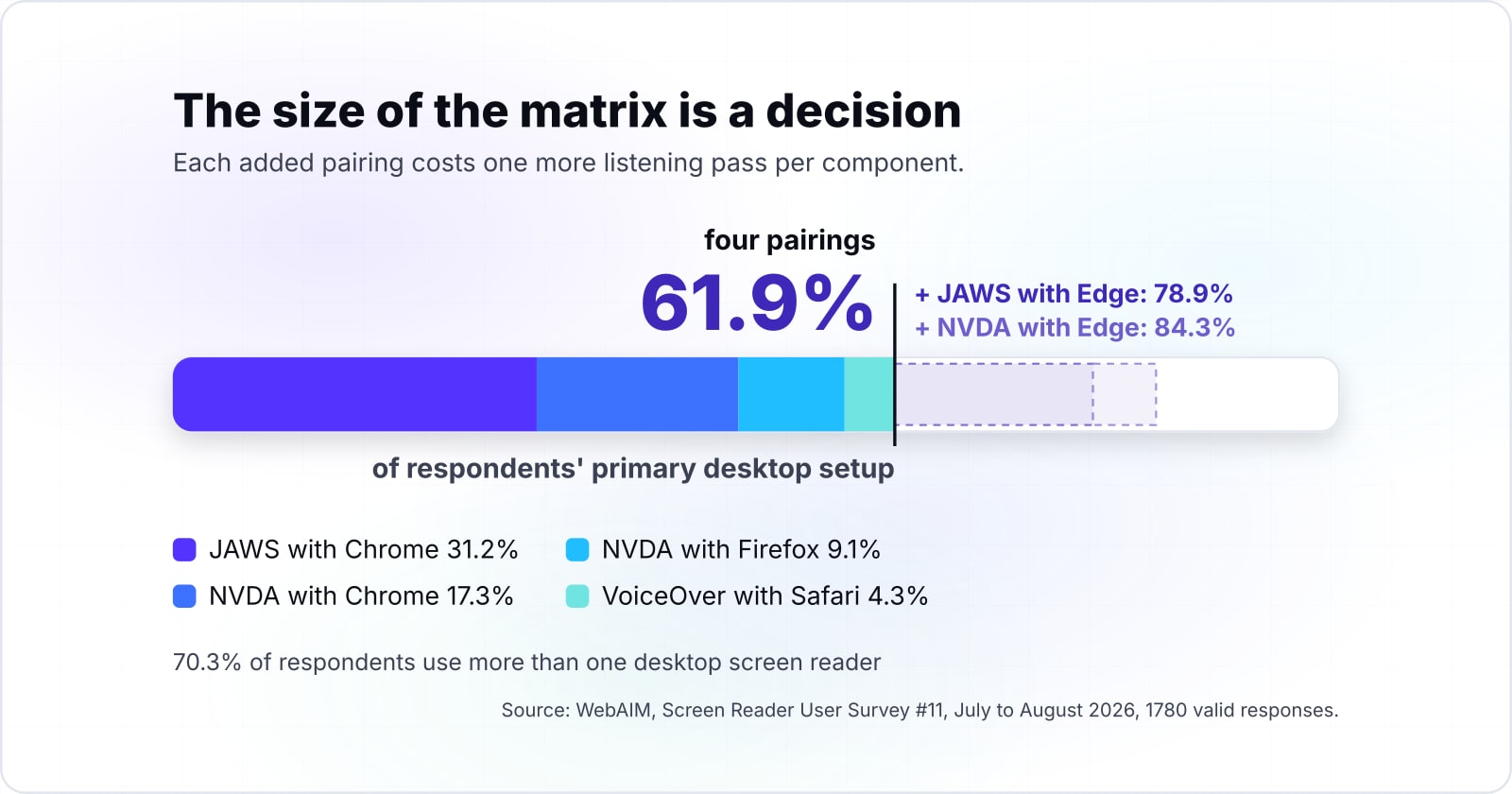
Four pairings, JAWS and NVDA with Chrome, NVDA with Firefox and VoiceOver with Safari, cover 61.9% of WebAIM Survey #11 respondents' primary desktop setup. WebAIM received 1780 valid responses and asked which browser each person uses with their primary screen reader. So the survey results report each pairing as a share of respondents.
The sum is plain addition from WebAIM's table: 31.2 for JAWS with Chrome, 17.3 for NVDA with Chrome, 9.1 for NVDA with Firefox and 4.3 for VoiceOver with Safari. Together they make 61.9%. Then add JAWS with Edge at 17.0 and the matrix covers 78.9%. A sixth pairing, NVDA with Edge at 5.4, takes it to 84.3%. VoiceOver with Safari stays in the first four despite its smaller share, because it is the only pairing on Apple's WebKit engine. JAWS with Edge runs on Chromium like both Chrome pairings, so it is the first pairing to add.
How much of your audience your matrix covers
Set each desktop pairing to 1 to test it or 0 to skip it. The share is the running sum of WebAIM's primary pairing table.
Percent of respondents whose primary desktop pairing is in the matrix
61.9
- Desktop listening passes per component
- 4
Arithmetic from WebAIM, Screen Reader User Survey #11, July to August 2026, 1780 valid responses. Modelled, not measured.
Show data table
| Step | Change | Running total |
|---|---|---|
| JAWS with Chrome | 31.2% | 31.2% |
| NVDA with Chrome | 17.3% | 48.5% |
| NVDA with Firefox | 9.1% | 57.6% |
| VoiceOver with Safari | 4.3% | 61.9% |
| JAWS with Edge | 17% | 78.9% |
| NVDA with Edge | 5.4% | 84.3% |
| Six pairings | 84.3% |
The four-pairing matrix reaches 61.9%, and JAWS with Edge is the largest single step after it.
So the size of the matrix is a decision with a number on it. In this survey, JAWS with Edge sits only a fraction behind NVDA with Chrome, so a team with many JAWS users should add it first. However, each added pairing costs one more listening pass per component. Then a lead can say what that pass buys, in respondents covered, before anyone books the time.
However, the number has a limit. It counts each respondent's primary pairing only, and WebAIM says 70.3% of respondents use more than one desktop screen reader. A matrix at 61.9% therefore reaches more people than its total suggests, but this table cannot say how many more.
Which screen reader and browser pairings should a team test?#
JAWS with Chrome at 31.2% and NVDA with Chrome at 17.3% are the two most common primary pairings in WebAIM's Survey #11, with JAWS with Edge at 17%. Pick the matrix from the pairing table, not the screen reader table, because the same screen reader can behave differently in each browser.
Show data table
| Item | Value |
|---|---|
| JAWS with Chrome | 31.2% |
| NVDA with Chrome | 17.3% |
| JAWS with Edge | 17% |
| NVDA with Firefox | 9.1% |
| NVDA with Edge | 5.4% |
| JAWS with Firefox | 5% |
| VoiceOver with Safari | 4.3% |
| VoiceOver with Chrome | 1.6% |
JAWS with Chrome leads, and JAWS with Edge sits only a fraction behind NVDA with Chrome.
First, a screen reader does not read the page directly. Instead, it reads what the browser exposes about each element: its name, its role and its state. Since Chrome, Edge, Firefox and Safari each build that view their own way, results differ. So a button that reads well in NVDA with Chrome can still read badly in NVDA with Firefox.
That is why the pairing shares decide the matrix. Also, they tell you which browser to open first. Because Chrome sits in both of the top two pairings, a Chrome pass in JAWS and NVDA finds most problems early. Edge is the browser to watch, since WebAIM reports its use with screen readers rising since 2024.
Treat the shares as a guide, not a census. WebAIM says it plainly on the results page: "The sample was not controlled and may not represent all screen reader users." In particular, WebAIM counted 54.1% of its respondents in North America, where JAWS led NVDA as the primary reader by 72.5% to 15.6%. If your users are mostly in one region, weigh that before you trust a global share.
Why does the mobile pass need VoiceOver on iOS and TalkBack?#
In WebAIM's Survey #11, 72.2% of respondents commonly use VoiceOver on mobile and 29.5% use TalkBack, so a desktop-only matrix misses most phones. Mobile is not an edge case for screen reader users. Rather, it is where most of them also read the web.
72.2%
VoiceOver
29.5%
TalkBack
VoiceOver leads on phones by a wide margin, so a matrix without an iPhone pass misses most mobile users.
Commentary/Jieshuo 8.2%, Voice Assistant 5.4% and VoiceView 4.2% follow. 1780 valid responses.
| Option | share of respondents; they could pick more than one |
|---|---|
| VoiceOver | 72.2% |
| TalkBack | 29.5% |
Source: WebAIM, Screen Reader User Survey #11, July to August 2026
But the desktop picture looks different. There, WebAIM's Survey #11 puts JAWS first at 55% as the primary screen reader and NVDA second at 32.9%, while VoiceOver is primary for only 6.5%. On a phone, though, VoiceOver comes first by a wide margin. So a team that tests only on Windows misses the screen reader most of its users hold in their hand.
Therefore, add two mobile pairings to every matrix: VoiceOver with Safari on an iPhone and TalkBack with Chrome on an Android phone. Even so, the checks stay the same. Only the way you move through the page changes, from keys to swipes.
Touch also brings its own failures. For example, a control can be too small to find by touch, or a swipe can skip an element that the keyboard reaches. Because of this, the mobile pass is never a copy of the desktop pass. It is the same five checks with a different set of hands.
What should a component expose before anyone turns a screen reader on?#
So the cheapest way to meet it is a native element. A <button> already has the button role, takes its name from its text, and works with Enter and Space. When no native element fits, build from an APG pattern. Each pattern lists the roles, states and keys a component needs.
For example, the APG disclosure pattern is a button that shows or hides a panel. When the content is visible, the button "has aria-expanded set to true". Optionally, aria-controls points at the panel it shows. Also, both Enter and Space toggle it.
The APG also warns against adding roles by habit. In fact, its read-me-first page is headed "No ARIA is better than Bad ARIA". When a role is wrong, a screen reader announces something the control is not, and that is worse than silence. So build plain first, add ARIA only where the pattern asks for it, then test.
Where does an axe-core scan stop and listening begin?#
Deque's own README says axe-core finds on average 57% of WCAG issues automatically, and it flags what it cannot decide as incomplete for manual review. The axe-core README puts it in one line: "With axe-core, you can find on average 57% of WCAG issues automatically."
Run the scan first, because it is cheap and fast. It catches a button with no name, an aria-expanded on an element that does not allow it, and a broken aria-controls reference. These are failures a person would also find, only slower. Fix them before anyone listens.
However, the scan cannot hear. It cannot tell whether a screen reader says "expanded" after a click, or whether focus lands in a sensible place after a dialog closes. Nor can it judge whether a heading's words describe the section. The Playwright docs say the same: "many accessibility problems can only be discovered through manual testing".
As a result, the split is clean. The scan settles what can be read from the page's code at one moment. Meanwhile, the listening pass settles what happens over time: the order of announcements, the change of state and the move of focus. Treat any incomplete items from the scan as the first things to listen for. That handover is where screen reader compatibility testing proper begins.
Which NVDA and JAWS commands run each check?#
JAWS at 55% and NVDA at 32.9% are the primary desktop readers in WebAIM's Survey #11, and each runs the five checks with its own quick keys. Both use a browse or virtual mode for reading, and a focus or forms mode for typing into controls.
Show data table
| Item | Value |
|---|---|
| JAWS | 55% |
| NVDA | 32.9% |
| VoiceOver | 6.5% |
| ZoomText/Fusion | 2.1% |
| Orca | 1.4% |
| Narrator | 0.4% |
| Dolphin SuperNova | 0.2% |
| Other | 1.4% |
JAWS and NVDA together are the primary desktop reader for most respondents, which is why their keys come first.
Here, the keys below come from each vendor's own reference. For NVDA, that is the NVDA 2026.2 user guide. For JAWS, it is the JAWS keystrokes page from Freedom Scientific. The NVDA key is Insert or the numpad zero key by default, and JAWS uses Insert in its commands.
| Check | NVDA | JAWS |
|---|---|---|
| Structure: headings | H for next heading, NVDA+F7 for the elements list | H for next heading, Insert+F6 for the headings list |
| Landmarks | D for next landmark | R for next region, Insert+Ctrl+R for the region list |
| Controls | F for next form field | B for next button, Insert+F5 for the form fields list |
| State change | NVDA+Space to switch to focus mode, then Enter or Space | Enter to enter forms mode, then Enter or Space |
| Focus move | Tab and Shift+Tab, then listen | Tab and Shift+Tab, then listen |
Source: NV Access, NVDA 2026.2 user guide; Freedom Scientific, JAWS keystrokes reference; both read October 2026.
Then run the checks in that order on every component. After that, repeat them in the second browser of the pairing. Shift with any of the quick keys moves backwards in both screen readers, which helps when one announcement goes by too fast.
How do the same checks run in VoiceOver and TalkBack?#
On touch screens the same checks run by swiping right through elements and changing what a swipe moves by, the rotor in VoiceOver and reading controls in TalkBack. On a Mac, VoiceOver uses a keyboard rotor instead.
On macOS, Apple's rotor guide defines VO as Control and Option together, or Caps Lock. VO-U opens the rotor menus, where you pick a list such as Headings. Apple's landmarks guide adds that when landmarks are listed in the rotor, you can move to a landmark from there.
On an iPhone, Apple's gesture guide lists swipe right to select the next item and swipe left for the one before. Double tap activates it. A two-finger rotation chooses a rotor setting, such as headings. Then swipe down moves to the next item of that kind.
On Android, Google's TalkBack gesture page uses the same right and left swipes and a double-tap to activate. Swipe up then down, or a three-finger swipe down, moves to the next reading control. Then a swipe down jumps to the next item of that kind. Google's reading controls page lists Headings and Controls among the defaults, but not landmarks, so on Android you listen for each region as you swipe.
| Check | VoiceOver on macOS | VoiceOver on iOS | TalkBack on Android |
|---|---|---|---|
| Structure: headings | VO-U, pick Headings | Rotor setting, then swipe down | Headings reading control, then swipe down |
| Landmarks | VO-U, pick the landmarks list | Swipe right and listen for each region | Swipe right and listen for each region |
| Controls | Tab through each control | Swipe right through each item | Controls reading control, then swipe down |
| State change | Enter or Space on the focused control | Double tap the control | Double-tap the control |
| Focus move | Tab, then listen | Swipe right after activating | Swipe right after activating |
Source: Apple, VoiceOver User Guide for macOS Tahoe 26 and iPhone User Guide for iOS 27; Google, Android Accessibility Help, TalkBack gestures and reading controls; all read October 2026.
The record stays comparable because the five checks do not change. Only the hands do.
What should each check sound like, and which WCAG 2.2 criterion does it verify?#
| Check | A pass sounds like | WCAG 2.2 criterion |
|---|---|---|
| Structure | The heading's text and its level, in an order that matches the layout | 1.3.1 Info and Relationships, 2.4.6 Headings and Labels |
| Landmarks | Each region by its role and label, such as "navigation" or "main" | 1.3.1 Info and Relationships |
| Controls | The control's visible name, then its role, such as "Details, button" | 4.1.2 Name, Role, Value |
| State change | The new state after activation, such as "expanded", or a status message read without moving focus | 4.1.2 Name, Role, Value, 4.1.3 Status Messages |
| Focus move | Focus lands on the next logical control, and nothing is skipped or read twice | 2.4.3 Focus Order |
Source: W3C, WCAG 2.2 Recommendation, 12 December 2024; W3C, APG disclosure pattern, read October 2026.
The words will differ a little between screen readers. For example, one may say "collapsed" where another stays silent on the closed state. Still, that is fine. The test is whether the name, the role and the state are all present, not whether every screen reader uses the same phrasing.
A fail is just as specific. "Button" with no name fails 4.1.2. A click that changes the panel but announces nothing new also fails 4.1.2, because the state is not exposed. Finally, a status update that only appears on screen fails 4.1.3.
How do you record a pass or a fail so the loop can be rerun?#
One row per component, pairing and check, with the screen reader and browser versions, the words heard, the criterion and the verdict, is enough to rerun the loop. In practice, a spreadsheet works, and so does a table checked into the repository beside the component.
| Component | Pairing | Check | Criterion | Heard | Verdict | Date |
|---|---|---|---|---|---|---|
| Details disclosure | NVDA 2026.2 with Chrome | State change | 4.1.2 | "Details, button, expanded" | Pass | 2026-10-02 |
| Details disclosure | VoiceOver with Safari on iOS 27 | State change | 4.1.2 | "Details, button" | Fail | 2026-10-02 |
Illustrative record rows, not measured results.
Copy the heard text rather than writing it from memory. NVDA makes that easy: its user guide describes a Speech Viewer, "a floating window" that shows "all the text that NVDA is currently speaking". You turn it on under Tools in the NVDA menu. Then you paste the line into the record.
Also, the versions matter as much as the verdict. Screen readers and browsers update often, and a pass in one version says little about the next. As a result, a change to the component, the screen reader or the browser is a reason to rerun that row. Because of that, the record tells you which rows to rerun, and that is what makes it a regression suite.
Which official pages do you build and test from?#
Build from the WAI-ARIA Authoring Practices pattern, scan with axe-core through Playwright, then listen with each vendor's own command reference open. Keep these pages open in build order:
- APG patterns: the roles, states and keys for the component you are building.
- axe-core on GitHub: the rules engine, and what it returns as incomplete.
- Playwright accessibility testing: the AxeBuilder class,
withTags()andanalyze(). - NVDA 2026.2 user guide: the browse mode quick keys and the Speech Viewer.
- JAWS keystrokes: the navigation quick keys and forms mode.
- VoiceOver gestures on iPhone: the swipe and rotor gestures.
- TalkBack gestures: the swipes and reading controls.
What is the smallest code that starts the loop?#
The smallest start is a disclosure button with aria-expanded and a Playwright test that runs AxeBuilder on it before anyone listens. The component follows the APG disclosure pattern, and the test follows the Playwright accessibility docs.
<button type="button" aria-expanded="false" aria-controls="details-panel">Details</button>
<div id="details-panel" hidden>Orders ship within two working days.</div>
<script>
  const button = document.querySelector('[aria-controls="details-panel"]');
  const panel = document.getElementById('details-panel');
  button.addEventListener('click', () => {
    const open = button.getAttribute('aria-expanded') === 'true';
    button.setAttribute('aria-expanded', String(!open));
    panel.hidden = open;
  });
</script>import { test, expect } from '@playwright/test';
import AxeBuilder from '@axe-core/playwright';
test('details disclosure passes the scan before the listening pass', async ({ page }) => {
await page.goto('https://your-site.com/components/details/');
await page.getByRole('button', { name: 'Details' }).click();
await page.locator('#details-panel').waitFor();
const accessibilityScanResults = await new AxeBuilder({ page })
.withTags(['wcag2a', 'wcag2aa', 'wcag21a', 'wcag21aa'])
.analyze();
expect(accessibilityScanResults.violations).toEqual([]);
});First, the test clicks the button before it scans. That matters, because Playwright's docs note that analyze() scans the page in its current state, so a hidden panel is never checked. Also, the four tags limit the scan to rules for WCAG A and AA criteria. Once this test passes, the component is ready for the listening pass.
When not to run the full loop on every component?#
Skip the full loop for a throwaway prototype or an unchanged component, and use a moderated session with screen reader users for whole-task usability. Because the loop costs one listening pass per pairing, per component, spend it where it pays.
First, a prototype that will be thrown away does not need six pairings. Instead, run the scan and one NVDA with Chrome pass, then do the full loop when the design settles.
Second, a component with no change since its last record does not need a new pass. Instead, the record already says what it sounded like, with which versions. Rerun it when the component, the screen reader or the browser changes.
Finally, the loop cannot tell you whether a whole task makes sense. For example, a checkout can pass every check on every part and still confuse a person halfway through. Instead, run sessions with people who use screen readers every day. WebAIM's own caveat applies to your matrix as well: a survey "may not represent all screen reader users", and nor will any test plan. The layered accessibility testing guide shows where those sessions sit beside the other layers.
| Case | Run instead |
|---|---|
| A throwaway prototype | The scan and one NVDA with Chrome pass, then the full loop when the design settles |
| A component with no change since its last record | Nothing new; rerun when the component, the screen reader or the browser changes |
| Whether a whole task makes sense | Sessions with people who use screen readers every day |
Where does each layer of the loop go deeper?#
The keyboard walk, the scan tool choice and the ARIA role contracts each have a post that goes deeper than this loop does. In short, the loop is one layer of the layered accessibility testing method, which orders every check by cost.
- The focus move check builds on the keyboard navigation and focus management guide, which covers the walk to run before any screen reader.
- The scan step depends on the engine you pick, and the accessibility testing tools comparison weighs the options.
- The controls check hears the role contracts set out in the ARIA roles guide for developers.
- The status message check goes further in the ARIA live regions guide.
A team that wants the listening pass run on its components can see how Atyantik runs accessibility testing. A team that needs the record turned into a conformance statement can read about WCAG and ADA compliance work. The vendor guides above are enough to run the loop on your own, starting with one component this week.