Zebra Printronix USB printer troubleshooting: the GUID that finds your label printer on Windows
Your app sees every USB device except the printer, or nothing at all. The cause is usually one GUID and one driver, and both can be named before any code is written.
Zebra Printronix USB printer troubleshooting: which GUID finds the printer?#
Enumerate GUID_DEVINTERFACE_USBPRINT, {28D78FAD-5A12-11D1-AE5B-0000F803A8C2}, to find a USB printer that Windows loaded usbprint.sys for; GUID_DEVINTERFACE_USB_DEVICE lists every USB device on a hub instead.
The printer value is the DEFINE_GUID(GUID_DEVINTERFACE_USBPRINT, ...) line in Microsoft's usbprint.h header, read on 7 October 2026. Here usbprint.sys is the Windows USB printer driver. In contrast, Microsoft's GUID_DEVINTERFACE_USB_DEVICE page, dated 28 February 2023, says that class is "defined for USB devices that are attached to a USB hub". So it finds the printer, and the mouse and the webcam too.
What does enumerating the right interface save a team that prints labels?#
Asking Windows for the right interface class turns an invisible printer into a device path the app opens directly, so a label job stops depending on a hand-configured print queue per workstation.
Take a worked example where one PC has a Zebra ZD411 and a Printronix T820 on USB, plus a USB keyboard. If both printers report USB class 7, Windows loads usbprint.sys for each. Then the printer class returns two device paths, one per printer. But the generic class returns all three devices, and the app has to guess which one prints.
One device path per printer
GUID_DEVINTERFACE_USBPRINT {28D78FAD-5A12-11D1-AE5B-0000F803A8C2}
Devices returned: 2
- Returned: Zebra ZD411 reports class 7, so usbprint.sys registered the printer interface.
- Returned: Printronix T820 reports class 7, so usbprint.sys registered the printer interface.
- Not returned: USB keyboard is not a printer.
The app opens each path directly, and the same build acts the same on every desk.
| Interface class | Devices returned |
|---|---|
| > GUID_DEVINTERFACE_USBPRINT | Zebra ZD411, Printronix T820 |
| GUID_DEVINTERFACE_USB_DEVICE | Zebra ZD411, Printronix T820, USB keyboard |
| GUID_DEVINTERFACE_HID | USB keyboard |
A worked example. Class definitions from Microsoft Learn and the usbprint.h header.
So one choice decides whether a single build acts the same on every desk. Also, Zebra's own Link-OS SDK UsbDiscoverer, build v2.14.5097, keeps direct printers and driver printers in two lists.
How does Windows turn a USB label printer into a device path?#
Windows matches the printer's USB class 7 to usbprint.sys, which creates a second device under USBPRINT and registers the printer interface an application can enumerate.
First, the USB bus driver makes a device with the ID Class_7, as Microsoft's USB port printer page of 15 December 2021 shows. Then usbprint.inf "matches all USB class 7 printer devices", so Windows loads usbprint.sys. Next, the driver reads the printer's 1284 ID, its maker and model text. Finally, it makes a second device under Enum\USBPRINT.
As a result, that second device gets a short ID, and the name is cut hard. Microsoft's USBPRINT identifiers page, dated 15 December 2021, keeps up to 20 characters of maker and model, then adds a 4-character checksum.
Show data table
| Item | Value |
|---|---|
| manufacturer and model, maximum | 20 |
| checksum | 4 |
Only up to 20 characters of maker and model survive in the hardware ID, followed by a 4-character checksum.
What are a5dcbf10-6530-11d2-901f-00c04fb951ed and the other GUIDs people paste?#
Microsoft documents a5dcbf10-6530-11d2-901f-00c04fb951ed as GUID_DEVINTERFACE_USB_DEVICE, while 02d4b3f1-fd88-11d1-960d-00805fc79235 is no device GUID at all but the COM+ System Application process id.
The five interface GUIDs below match Microsoft's pages, written the way Windows prints them. An app lists devices by interface class. But a setup class only groups drivers for install, so it never goes to SetupDiGetClassDevs with DIGCF_DEVICEINTERFACE.
| What it is | GUID | Kind |
|---|---|---|
| USB printer (GUID_DEVINTERFACE_USBPRINT) | {28D78FAD-5A12-11D1-AE5B-0000F803A8C2} | interface class |
| Any USB device on a hub (GUID_DEVINTERFACE_USB_DEVICE) | {A5DCBF10-6530-11D2-901F-00C04FB951ED} | interface class |
| HID devices (GUID_DEVINTERFACE_HID) | {4D1E55B2-F16F-11CF-88CB-001111000030} | interface class |
| USB host controller (GUID_DEVINTERFACE_USB_HOST_CONTROLLER) | {3ABF6F2D-71C4-462A-8A92-1E6861E6AF27} | interface class |
| USB hub (GUID_DEVINTERFACE_USB_HUB) | {F18A0E88-C30C-11D0-8815-00A0C906BED8} | interface class |
| Printer setup class | {4d36e979-e325-11ce-bfc1-08002be10318} | setup class |
| COM+ System Application | {02D4B3F1-FD88-11D1-960D-00805FC79235} | process id, not a device |
Source: Microsoft Learn interface class pages dated 28 February 2023, the usbprint.h header read 7 October 2026, the setup classes page dated 6 April 2026, and a Microsoft Q&A thread of 14 July 2022.
However, the last row is the one most people search. A Microsoft Q&A thread of 14 July 2022 shows it in dllhost.exe /Processid:{02D4B3F1-FD88-11D1-960D-00805FC79235}. So it is the COM+ System Application service you see in Task Manager, not a printer. Also, GUID_CLASS_USB_DEVICE is just the old name for the USB device class, as Microsoft's GUID_CLASS_USB_DEVICE page says.
Why can't raw USB discovery see a printer installed through a vendor driver?#
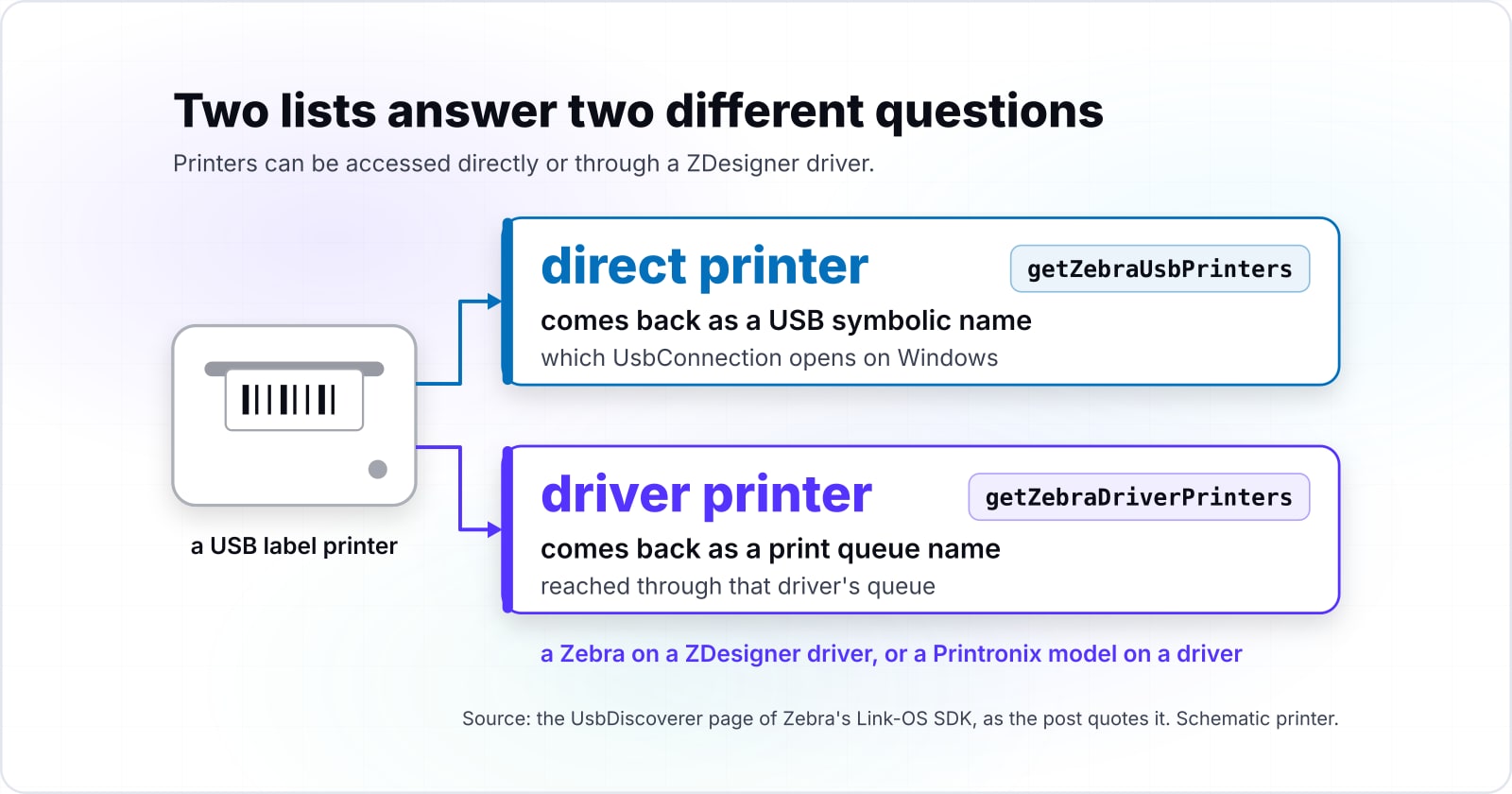
Zebra's Link-OS SDK splits discovery in two: UsbDiscoverer.getZebraUsbPrinters finds printers reachable directly, and getZebraDriverPrinters finds ones installed through a ZebraDesigner driver.
The Link-OS SDK is Zebra's library for finding and talking to its printers. For a handheld RFID reader instead of a printer, see how an Android app talks to a vendor RFID reader SDK. Its UsbDiscoverer page says "Printers can be accessed directly or through a Zebra Designer" printer driver. For example, a direct printer comes back with a USB symbolic name, which UsbConnection opens on Windows. But a driver printer comes back as a print queue name.
So the two lists answer two different questions. In practice, a printer set up through its vendor's Windows driver is reached through that driver's queue. That holds for a Zebra on a ZDesigner driver, and for a Printronix model on a driver from the Printronix drivers page. Then check which list the printer is on before you write code.
Where does a WinUSB device get its DeviceInterfaceGUID?#
A WinUSB device declares DeviceInterfaceGUID in its extended properties OS feature descriptor, and the USB driver stack registers that value in the device's hardware key during enumeration.
WinUSB is Microsoft's generic USB driver for a device with no class driver of its own. Microsoft's WinUSB install page, dated 28 October 2025, says an app reads the value "by using SetupDiXxx APIs", through SetupDiOpenDevRegKey. Since Windows 8, Microsoft asks the device to report it itself, not through a custom INF file.
What should you check when a Zebra printer USB device is not recognized?#
Zebra's own guides trace an Unspecified USB printer to an order mistake: the cable went in before the driver was pre-installed, so Windows bound its generic driver instead.
Zebra's ZD411 troubleshooting page gives the cause: the USB cable went in before the "printer drivers were pre-installed". The fix runs in order:
Unplug the USB cable from the PC.
Delete the printer listed as Unspecified in Devices and Printers.
Install the Zebra Windows Printer Driver v8.
Plug the cable back in, and check the printer shows under Printers.
Once the Zebra printer USB connection shows under Printers, run the USBPRINT enumeration again. If it still fails, open setupapi.dev.log, the Windows device install log. Microsoft's USBPRINT identifiers page calls it the best place to find the hardware ID Windows made.
Where does Zebra Browser Print fit beside direct USB enumeration?#
Zebra Browser Print gives a browser-based app USB and network printing on Windows and OSX desktops, so the web page never enumerates a device interface itself.
Zebra's Browser Print support page, read on 7 October 2026, says: "Network and USB connectivity are supported on Windows and OSX desktop PCs." So the three routes split by where your code runs:
| Where your code runs | Route |
|---|---|
| A web app | uses Browser Print. |
| A desktop app for Zebra models only | uses the Link-OS SDK and its UsbDiscoverer. |
| Anything else, such as a Printronix model or a mixed fleet | lists USBPRINT through SetupAPI. |
Which Microsoft pages should you build the enumeration from?#
Build from the SetupAPI reference pages in call order: SetupDiGetClassDevs for the interface set, SetupDiEnumDeviceInterfaces for each entry, then SetupDiGetDeviceInterfaceDetail for its DevicePath.
- Call 1
SetupDiGetClassDevs
for the interface set
- Call 2
SetupDiEnumDeviceInterfaces
for each entry
- Call 3
SetupDiGetDeviceInterfaceDetail
for its DevicePath
SetupAPI is the Windows library that lists devices and their interfaces. Open these four pages in order:
- SetupDiGetClassDevsW: pass DIGCF_DEVICEINTERFACE and DIGCF_PRESENT.
- SetupDiEnumDeviceInterfaces: loop MemberIndex from zero until ERROR_NO_MORE_ITEMS.
- SetupDiGetDeviceInterfaceDetailW: call once for the size, once for DevicePath.
- usbprint.h: the GUID_DEVINTERFACE_USBPRINT value.
What is the smallest Python code that lists USB printer device paths?#
The smallest working path is one loop: get the USBPRINT interface set, enumerate each interface, read its DevicePath with the two-call buffer pattern, then open it with CreateFile.
This script runs on Windows with plain Python and ctypes, the built-in bridge to Windows DLLs. Step 1 asks for the set, step 2 walks it, step 3 reads each path, and step 4 opens the first printer.
import ctypes
from ctypes import wintypes
setupapi = ctypes.WinDLL("setupapi", use_last_error=True)
kernel32 = ctypes.WinDLL("kernel32", use_last_error=True)
class GUID(ctypes.Structure):
    _fields_ = [("Data1", wintypes.DWORD), ("Data2", wintypes.WORD),
                ("Data3", wintypes.WORD), ("Data4", ctypes.c_ubyte * 8)]
class SP_DEVICE_INTERFACE_DATA(ctypes.Structure):
    _fields_ = [("cbSize", wintypes.DWORD), ("InterfaceClassGuid", GUID),
                ("Flags", wintypes.DWORD), ("Reserved", ctypes.c_size_t)]
# GUID_DEVINTERFACE_USBPRINT {28D78FAD-5A12-11D1-AE5B-0000F803A8C2}, from usbprint.h
USBPRINT = GUID(0x28D78FAD, 0x5A12, 0x11D1,
                (ctypes.c_ubyte * 8)(0xAE, 0x5B, 0x00, 0x00, 0xF8, 0x03, 0xA8, 0xC2))
DIGCF_PRESENT, DIGCF_DEVICEINTERFACE = 0x02, 0x10
ERROR_NO_MORE_ITEMS = 259
setupapi.SetupDiGetClassDevsW.restype = ctypes.c_void_p
setupapi.SetupDiGetClassDevsW.argtypes = [ctypes.POINTER(GUID), wintypes.LPCWSTR,
                                          wintypes.HWND, wintypes.DWORD]
setupapi.SetupDiEnumDeviceInterfaces.argtypes = [ctypes.c_void_p, ctypes.c_void_p,
    ctypes.POINTER(GUID), wintypes.DWORD, ctypes.POINTER(SP_DEVICE_INTERFACE_DATA)]
setupapi.SetupDiGetDeviceInterfaceDetailW.argtypes = [ctypes.c_void_p,
    ctypes.POINTER(SP_DEVICE_INTERFACE_DATA), ctypes.c_void_p, wintypes.DWORD,
    ctypes.POINTER(wintypes.DWORD), ctypes.c_void_p]
setupapi.SetupDiDestroyDeviceInfoList.argtypes = [ctypes.c_void_p]
kernel32.CreateFileW.restype = ctypes.c_void_p
kernel32.CreateFileW.argtypes = [wintypes.LPCWSTR, wintypes.DWORD, wintypes.DWORD,
    ctypes.c_void_p, wintypes.DWORD, wintypes.DWORD, ctypes.c_void_p]
kernel32.CloseHandle.argtypes = [ctypes.c_void_p]
# Step 1: the set of USB printer interfaces present right now
devs = setupapi.SetupDiGetClassDevsW(ctypes.byref(USBPRINT), None, None,
                                     DIGCF_PRESENT | DIGCF_DEVICEINTERFACE)
if devs in (None, ctypes.c_void_p(-1).value):
    raise ctypes.WinError(ctypes.get_last_error())
paths = []
index = 0
while True:
    # Step 2: one interface per MemberIndex, until ERROR_NO_MORE_ITEMS
    data = SP_DEVICE_INTERFACE_DATA(cbSize=ctypes.sizeof(SP_DEVICE_INTERFACE_DATA))
    if not setupapi.SetupDiEnumDeviceInterfaces(devs, None, ctypes.byref(USBPRINT),
                                                index, ctypes.byref(data)):
        if ctypes.get_last_error() == ERROR_NO_MORE_ITEMS:
            break
        raise ctypes.WinError(ctypes.get_last_error())
    # Step 3: first call returns the size, second call fills DevicePath
    size = wintypes.DWORD()
    setupapi.SetupDiGetDeviceInterfaceDetailW(devs, ctypes.byref(data), None, 0,
                                              ctypes.byref(size), None)
    buf = ctypes.create_string_buffer(size.value)
    # cbSize is the fixed part of SP_DEVICE_INTERFACE_DETAIL_DATA_W: 8 on 64-bit, 6 on 32-bit
    ctypes.cast(buf, ctypes.POINTER(wintypes.DWORD))[0] = 8 if ctypes.sizeof(ctypes.c_void_p) == 8 else 6
    if not setupapi.SetupDiGetDeviceInterfaceDetailW(devs, ctypes.byref(data), buf,
                                                     size, None, None):
        raise ctypes.WinError(ctypes.get_last_error())
    paths.append(ctypes.wstring_at(ctypes.addressof(buf) + 4))
    index += 1
setupapi.SetupDiDestroyDeviceInfoList(devs)
for p in paths:
    print(p)
# Step 4: open the first printer for writing
if paths:
    GENERIC_WRITE, OPEN_EXISTING = 0x40000000, 3
    handle = kernel32.CreateFileW(paths[0], GENERIC_WRITE, 0, None, OPEN_EXISTING, 0, None)
    if handle == ctypes.c_void_p(-1).value:
        raise ctypes.WinError(ctypes.get_last_error())
    kernel32.CloseHandle(handle)
If the list is empty, no printer loaded usbprint.sys. In that case, go back to the driver order above.
When is raw USB enumeration the wrong tool?#
Raw enumeration is the wrong tool when the printer already has a working Windows print queue or the app runs in a browser; print through the queue or Zebra Browser Print instead.
Where does the label printer fit in the rest of the system?#
A label printer is usually the last step of a warehouse or shipping flow, so the integration around it deserves the same care as the device path.
For the software that sends those labels, read about custom logistics software and where a WMS sits in supply chain management software. When the label also carries an RFID tag, see which RFID tag suits which goods, and what tagging returns. To have software built that encodes and prints those tags, see RFID software development. If the printer must plug into a system you already run, see API integrations. For a new desktop or warehouse app, see custom software development. Still, the four Microsoft pages above are enough to build this on your own.
Frequently asked questions
What is the first step in Zebra Printronix USB printer troubleshooting?
What is a5dcbf10-6530-11d2-901f-00c04fb951ed?
What is 02d4b3f1-fd88-11d1-960d-00805fc79235?
What is DeviceInterfaceGUID?
Why is my Zebra printer USB device not recognized?
Does the Zebra Browser Print SDK work over USB?
Where do I get Printronix drivers for a USB printer?
Do Microsoft's 2026 printer driver changes affect Zebra and Printronix USB printers?
End-of-servicing plan for third-party printer drivers (opens in new tab)