Accessible multimedia under WCAG 2.2: captions, transcripts and audio description for every clip
Two facts about a clip decide what it owes: what kind of media it is, and whether it is live. Get those right and the captions, transcript and description work turns into a short, checkable list.
What does accessible multimedia require under WCAG 2.2?#
Accessible multimedia under WCAG 2.2 means captions on every video with sound, a transcript for audio-only clips, and audio description for prerecorded video at Level AA. The W3C published the WCAG 2.2 Recommendation on 12 December 2024. All of this sits under its guideline 1.2, "Time-based Media".
Each of the five criteria answers one question about one kind of clip. For an audio-only recording, 1.2.1 asks for an alternative that "presents equivalent information for prerecorded audio-only content". For video with sound, 1.2.2 asks for captions at Level A. Then 1.2.3 asks for audio description or a full text alternative, also at Level A.
Level AA adds two more. Under 1.2.4, live video with sound needs captions, and under 1.2.5, recorded video needs audio description. So a team that targets AA owes all five criteria.
In short, multimedia accessibility is not five separate projects. Instead, it is one rule applied to each clip, so that nothing in the sound or the picture reaches only one sense.
Who loses the content when a clip has no captions?#
The World Health Organization's 3 March 2026 fact sheet counts 430 million people needing rehabilitation for disabling hearing loss, a figure it projects past 700 million by 2050. The WHO fact sheet of 3 March 2026 puts that at over 5% of the world's population. And that count includes 34 million children.
Show data table
| Item | Value |
|---|---|
| Today | 430 |
| Projected by 2050 | 700 |
The count is projected to pass 700 million by 2050.
For each of those people, a clip with no captions or transcript says nothing at all. But the same text helps far more people than that. It serves anyone who watches on mute, sits in a noisy room, or reads faster than they listen.
There is a second gain, too. Media is also among the quickest parts of an audit to check, because a missing caption track is easy to see and easy to test. The U.S. Access Board's ICT Testing Baseline checks captions and description by a "manual, cognitive comparison" of the clip with its alternative. In practice, a tester watches the clip, reads the text, and notes what is missing.
Which WCAG 2.2 criterion covers which kind of media?#
Five criteria split media by shape: 1.2.1 covers audio-only and video-only, 1.2.2 and 1.2.3 cover prerecorded video with sound, and 1.2.4 and 1.2.5 add live captions and audio description at AA. Two facts about a clip decide its row: what the media holds, and whether it is live.
| Criterion | Level | Applies to | What satisfies it |
|---|---|---|---|
| 1.2.1 Audio-only and Video-only (Prerecorded) | A | a podcast, a recorded call, a silent animation | a transcript for audio; a text alternative or an audio track for video |
| 1.2.2 Captions (Prerecorded) | A | recorded video with sound | synchronized captions of speech and meaningful sound |
| 1.2.3 Audio Description or Media Alternative (Prerecorded) | A | recorded video with sound | audio description, or a full descriptive transcript |
| 1.2.4 Captions (Live) | AA | live video with sound | live captions in sync with the stream |
| 1.2.5 Audio Description (Prerecorded) | AA | recorded video with sound | audio description of the video itself |
Source: W3C, Web Content Accessibility Guidelines 2.2, W3C Recommendation of 12 December 2024.
So handling multimedia content in website builds starts with this table. A recorded webinar with a speaker and slides lands in three rows: 1.2.2, 1.2.3 and 1.2.5. A podcast lands only in the 1.2.1 row. Meanwhile, a live audio-only stream falls under 1.2.9, which the W3C sets at Level AAA. So an AA target does not require it.
The U.S. Access Board's baseline tests the same four criteria for media with sound. Then it adds the federal rule 503.4, which asks for user controls for captions and audio description. That control rule comes back in the player section below.
Which alternative makes audio clips accessible to people who are Deaf or hard of hearing?#
A text transcript is the alternative that makes a prerecorded audio clip accessible to people who are Deaf or hard of hearing, and 1.2.1 requires one at Level A. So if you ask which alternative form of multimedia will make audio clips more accessible to people with hearing disabilities, the answer is a transcript, not captions.
The W3C's transcripts guide defines what goes in it. "Basic transcripts are a text version of the speech and non-speech audio information needed to understand the content." So it holds the words, who says them, and any sound that carries meaning. If a laugh or a door slam changes what a listener understands, it belongs in the text.
The same guide says a podcast transcript "can be simple text paragraphs with the speakers identified". It also asks for an easy route to it, such as the transcript or a link to it right under the player. And for audio accessibility, that placement matters as much as the text.
So what are the guidelines for handling unintelligible audio? The W3C's guide to transcribing audio to text gives a plain rule: if you cannot understand what is said, write "[unintelligible]". So don't guess, and don't tidy the speaker's grammar either. And when a stretch of talk is off topic, note in square brackets that it was left out.
Why does a transcript satisfy 1.2.3 but not 1.2.5?#
A descriptive transcript satisfies 1.2.3 at Level A because that criterion accepts a media alternative, but 1.2.5 at Level AA accepts only audio description of the video itself. The two criteria cover the same videos, but they differ in what they accept.
For video, the W3C's transcripts guide adds a step: "Descriptive transcripts for videos also include visual information needed to understand the content." So a descriptive transcript gives a blind person the on-screen text, the actions and the scene changes.
Then the W3C's media overview goes further, saying that descriptive transcripts "are required to provide video content to people who are both Deaf and blind". Therefore a transcript is also the answer for aiding visually impaired web users while providing transcriptions of audio streams. Because it is text, a screen reader or a braille display lets them read it at their own pace.
At AA the rule tightens. The 1.2.5 text reads "Audio description is provided for all prerecorded video content in synchronized media", and it offers no transcript route. As a result, the transcript that passed at A becomes a useful extra, not the answer. Then the video needs narration that describes the visuals, either in the soundtrack or in a description track the player reads aloud. In short, accessibility for recorded media at AA means captions plus audio description, with the transcript as an extra.
Do automatic captions meet WCAG 2.2 for live and recorded video?#
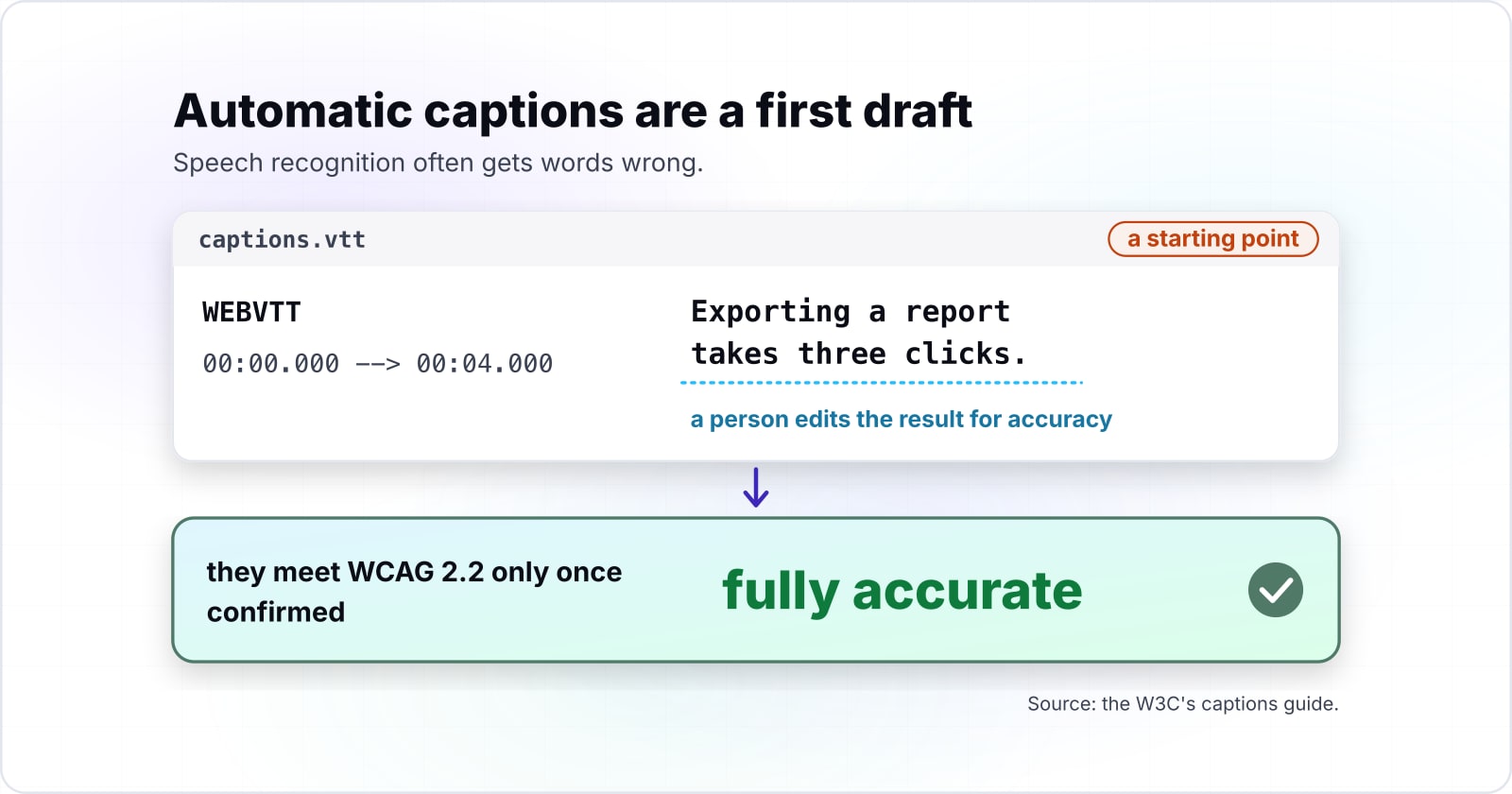
Automatic captions meet WCAG 2.2 only once confirmed fully accurate, the W3C says, though 28.7% of WebAIM's July to August 2026 survey respondents already use AI for multimedia alternatives. The W3C's captions guide is direct about it: "Automatically-generated captions do not meet user needs or accessibility requirements, unless they are confirmed to be fully accurate."
Show data table
| Item | Value |
|---|---|
| Image descriptions or alt text | 60.1 |
| Complex image descriptions | 49.7 |
| Alternatives for multimedia content | 28.7 |
| Audio alternatives of text | 17.9 |
28.7% use AI for multimedia alternatives, under half the 60.1% who use it for image descriptions.
The guide gives the reason: speech recognition often gets words wrong. And missing one word such as "not", it says, can make the captions say the opposite of the audio. So treat an automatic track as a first draft, which a person corrects against the audio before it ships.
That also answers how to create subtitles from audio. Most video platforms make an automatic caption file, and the W3C guide calls it "a starting point". If you already have a script, tools can add the timestamps for you. Either way, a person edits the result for accuracy and line breaks.
Live video under 1.2.4 is harder, because there is no time to edit. The W3C's Understanding 1.2.4 names Communication Access Realtime Translation (CART), where a trained captioner types the speech as it happens. Also, a short broadcast delay is allowed. When you post the recording later, the captions guide expects "minor editing for accuracy" first.
How does one 90-second product clip reach Level AA?#
In this worked example a 90-second product demo with three silent on-screen steps reaches Level A with captions and a descriptive transcript, then needs audio description to reach AA. The clip and its timings are illustrative, but each step maps to a WCAG 2.2 criterion.
Picture the demo, where a narrator says "Exporting a report takes three clicks", and music plays under the voice. Meanwhile, the screen shows three steps the narration never names. First the cursor picks Export, then a dialog offers CSV, and finally a toast reads "Saved".
Step 1, captions for 1.2.2. Write captions.vtt with the narration as timed cues, then add a cue for the music. Once every sound has synchronized text, 1.2.2 is met.
Step 2, a descriptive transcript for 1.2.3. Turn the captions into a page of text, then add the three on-screen steps in brackets. Then link the page right under the player. So at Level A, the clip now conforms.
Step 3, audio description for 1.2.5. At AA, the transcript stops counting, so the clip needs description of the three steps.
Owes 3 of 5 criteria at Level AA
Ship these alternatives:
- synchronized captions of speech and meaningful sound
- audio description of the video itself
From WCAG 2.2, W3C Recommendation of 12 December 2024. A lookup, not legal advice.
| Criterion | Level | For this clip |
|---|---|---|
| 1.2.1 Audio-only and Video-only (Prerecorded) | A | Does not apply to this clip |
| 1.2.2 Captions (Prerecorded) | A | synchronized captions of speech and meaningful sound |
| 1.2.3 Audio Description or Media Alternative (Prerecorded) | A | audio description of the video itself |
| 1.2.4 Captions (Live) | AA | Does not apply to this clip |
| 1.2.5 Audio Description (Prerecorded) | AA | audio description of the video itself |
But a rewritten script often closes 1.2.5 without any description track. The W3C's Understanding document allows it when "all of the important information in the video track is already conveyed in the audio track". So the cheapest fix is often the voice-over.
Rewrite it as "Select Export, choose CSV, and wait for the Saved message." Then the soundtrack speaks all three steps, and the same accessible multimedia clip reaches AA with its captions and transcript.
If the voice-over is locked, write descriptions.vtt instead, with three cues timed into the pauses, say at 0:21, 0:47 and 1:15 in this illustrative clip. So the deciding fact is not the length of the clip, but whether the soundtrack already speaks what the screen shows.
Which pages do you build captions and descriptions from?#
Build the tracks from four official pages in order: the MDN WebVTT reference, the MDN track element reference, the W3C description guide and the W3C transcripts guide. Each one answers one part of the build.
- MDN, WebVTT API, last modified 11 February 2026: the file format, the
WEBVTTheader and timed cues. - MDN, the track element, last modified 24 April 2026: the
kind,src,srclang,labelanddefaultattributes. - W3C WAI, description guide: how to write and time descriptions, and what to do when they do not fit.
- W3C WAI, transcripts guide: what a descriptive transcript holds and where it goes.
Write the files
MDN WebVTT API: the WEBVTT header and timed cues.
Attach them
MDN track element: the kind, src, srclang, label and default attributes.
Check the description timing
W3C WAI description guide: how to write and time descriptions.
Build the transcript
W3C WAI transcripts guide: what a descriptive transcript holds and where it goes.
The order matters, because each step needs the one before it. First write the files, then attach them, then check the description timing. Finally, build the transcript, since it is easiest to make from finished captions.
What is the smallest markup that ships captions and descriptions?#
The smallest conforming markup is one video element with two track elements, kind captions and kind descriptions, each pointing at a WebVTT file, plus a linked transcript. It takes four steps.
First, write captions.vtt. MDN's WebVTT reference shows the shape: a WEBVTT header, then cues with a start and an end time. Second, write descriptions.vtt the same way, with one cue per on-screen step.
WEBVTT

00:00.000 --> 00:04.000
<v Narrator>Exporting a report takes three clicks.

00:04.000 --> 00:07.000
[upbeat music]
Third, attach both files with track elements. MDN lists captions and descriptions among the allowed kind values. Also, srclang must be a valid language tag for each track. Fourth, link the transcript right under the player, as the W3C transcripts guide advises.
<video controls src="export-demo.mp4">
  <track default kind="captions" src="captions.vtt" srclang="en" label="English captions" />
  <track kind="descriptions" src="descriptions.vtt" srclang="en" label="English descriptions" />
</video>
<p><a href="/export-demo-transcript/">Read the descriptive transcript</a></p>
One warning applies to the second track. MDN notes that "browsers do not necessarily support all kinds of text tracks". Likewise, the W3C description guide says text descriptions work only when the player reads them aloud. So check that your player voices the descriptions track. If it does not, a described version of the video is the safer route.
What makes a video player accessible?#
An accessible video player works from the keyboard and puts caption and description controls beside volume, and WebAIM's February 2026 scan found pages with YouTube videos carried 9.4 more errors than the 56.1 average. In The WebAIM Million for 2026, 6.2% of the million home pages had YouTube videos.
56.1
All home pages
65.5
Home pages with YouTube videos
Home pages with YouTube videos averaged 9.4 more detected errors than the 56.1 average.
| Option | average detected errors per home page |
|---|---|
| All home pages | 56.1 |
| Home pages with YouTube videos | 65.5 |
Accessible multimedia only works when a person can reach the button that turns the captions on. The W3C's player guide lists the basics: every control works from the keyboard, focus stays visible, and people can set caption size, colour and position.
The U.S. federal rule is more exact. Section508.gov quotes rule 503.4, which reads: "ICT shall provide user controls for closed captions and audio descriptions." And its sub-rules put the caption control at the same menu level as volume.
A good accessible video player also offers an interactive transcript. The W3C player guide says "Interactive transcripts highlight text phrases as they are spoken", so a user can select a phrase to jump to that point. So handling multimedia content in web sites gets easier for everyone, not only for people using assistive technology.
When is a transcript or a description track the wrong tool?#
Media that is a clearly labelled alternative for text is exempt from 1.2.1 to 1.2.3, and a video whose soundtrack already speaks every visual detail needs no separate audio description. Both exceptions are written into WCAG 2.2, so knowing them saves real work.
First, a signed or narrated version of a page that already exists as text is exempt. The WCAG text excuses it "when the media is a media alternative for text and is clearly labeled as such". Here the label is the work, not a transcript.
Second, a talking-head video needs no description track when the speaker says everything that matters. The W3C's Understanding 1.2.5 says so directly: when the audio track carries the visual information, "no additional audio description is necessary". The better tool there is a good script.
Third, a live audio-only stream is not covered at AA at all, because its criterion, 1.2.9, is Level AAA. Captions still help people, but the better tool for an AA audit is a transcript posted once the stream ends. In each case, spend the effort on the criterion the clip actually owes.
| Case | What WCAG 2.2 says | The better tool |
|---|---|---|
| A signed or narrated version of a page that exists as text | Exempt from 1.2.1 to 1.2.3 when clearly labeled as a media alternative for text | A clear label |
| A talking-head video whose speaker says everything that matters | No additional audio description is necessary | A good script |
| A live audio-only stream | Covered by 1.2.9, Level AAA, not required at AA | A transcript posted once the stream ends |
Where should media accessibility work go next?#
Media alternatives sit inside a wider WCAG 2.2 audit, so the next steps are the version comparison, a testing pass and a platform case study. Since accessible multimedia is one part of that programme, these posts cover the rest.
For where 2.2 sits against 2.0 and 2.1, see the WCAG guidelines comparison. To test tracks and players in a full audit, read the guide to accessibility testing. For live text a screen reader must announce, ARIA live regions covers the neighbour of live captions.
If you would rather hand the audit to a team, see WCAG and ADA compliance or accessibility testing services. Either way, you can build accessible multimedia content from the W3C media guides and MDN alone. Those pages are enough on their own for accessible audio and video content.