Rancher on DigitalOcean Kubernetes: a Helm install with Traefik, cert-manager and TLS
Most install guides still reach for an ingress controller that stopped getting security fixes in March 2026. Here is the install that picks a supported cluster version, a maintained controller and the load balancer settings that keep the certificate working.
How do you install Rancher on DigitalOcean Kubernetes?#
Create a DigitalOcean Kubernetes cluster on version 1.35 or 1.36, install Traefik and cert-manager with Helm, then install the Rancher chart with your hostname and Let's Encrypt. In short, that is the whole Rancher install guide for a hosted cluster.
Before you install Rancher on Kubernetes here, have a DOKS cluster, a domain you control, and the helm and kubectl tools ready. Also, plan for three nodes. SUSE's Rancher installation requirements, read on 7 October 2026, say "a highly available setup with at least three nodes is required for production".
| Size | Maximum clusters | Maximum nodes | vCPUs per node | RAM per node (GB) |
|---|---|---|---|---|
| Small | 150 | 1,500 | 4 | 16 |
| Medium | 300 | 3,000 | 8 | 32 |
| Large | 500 | 5,000 | 16 | 64 |
What does Rancher on DOKS give a platform team?#
On the Small tier, one Rancher install on 3 nodes of 4 vCPUs each manages up to 150 clusters and 1,500 nodes from one console and one login. Those limits come from the hosted sizing table in SUSE's Rancher requirements, read on 7 October 2026.
In practice, that means one sign-in and one view of every cluster. Meanwhile, DigitalOcean runs the Kubernetes control plane for you. Its pricing page, read on 7 October 2026, says the control plane is "included at no cost". A high availability control plane costs $40.00 per month on that page.
As a result, the main cost is Rancher's own compute. By the same 2026 sizing table, that is 12 vCPUs across three Small nodes.
Show data table
| Item | Value |
|---|---|
| Small, up to 1,500 managed nodes | 12 |
| Medium, up to 3,000 managed nodes | 24 |
| Large, up to 5,000 managed nodes | 48 |
Each tier doubles the vCPUs of the one below it: 12, 24 and 48 across three nodes.
How many nodes and how much memory does the DOKS cluster for Rancher need?#
Size the upstream DOKS cluster from how many nodes Rancher will manage: 3 nodes of 16 GB cover 1,500 managed nodes, 32 GB each cover 3,000. Both tiers come from SUSE's hosted sizing table, read on 7 October 2026.
The upstream cluster is the one Rancher runs on, and the downstream clusters are the ones it manages. Therefore, the count of downstream nodes is the one input that sets the size. For example, a team managing up to 1,500 nodes in 2026 needs three nodes of 4 vCPUs and 16 GB. That is 12 vCPUs and 48 GB in all.
Hosted sizing tier
SmallMinimum per upstream node
4 vCPUs, 16 GBvCPUs across three nodes
12Memory across three nodes
48 GBSmall tier covers 1,500 managed nodes on 3 upstream nodes
The Small tier manages up to 1,500 nodes and 150 clusters from one Rancher install.
| Size | Maximum clusters | Maximum nodes | vCPUs per node | RAM per node (GB) |
|---|---|---|---|---|
| Small (selected) | 150 | 1,500 | 4 | 16 |
| Medium | 300 | 3,000 | 8 | 32 |
| Large | 500 | 5,000 | 16 | 64 |
Which DOKS version do Rancher 2.15.2 and cert-manager 1.21 both support?#
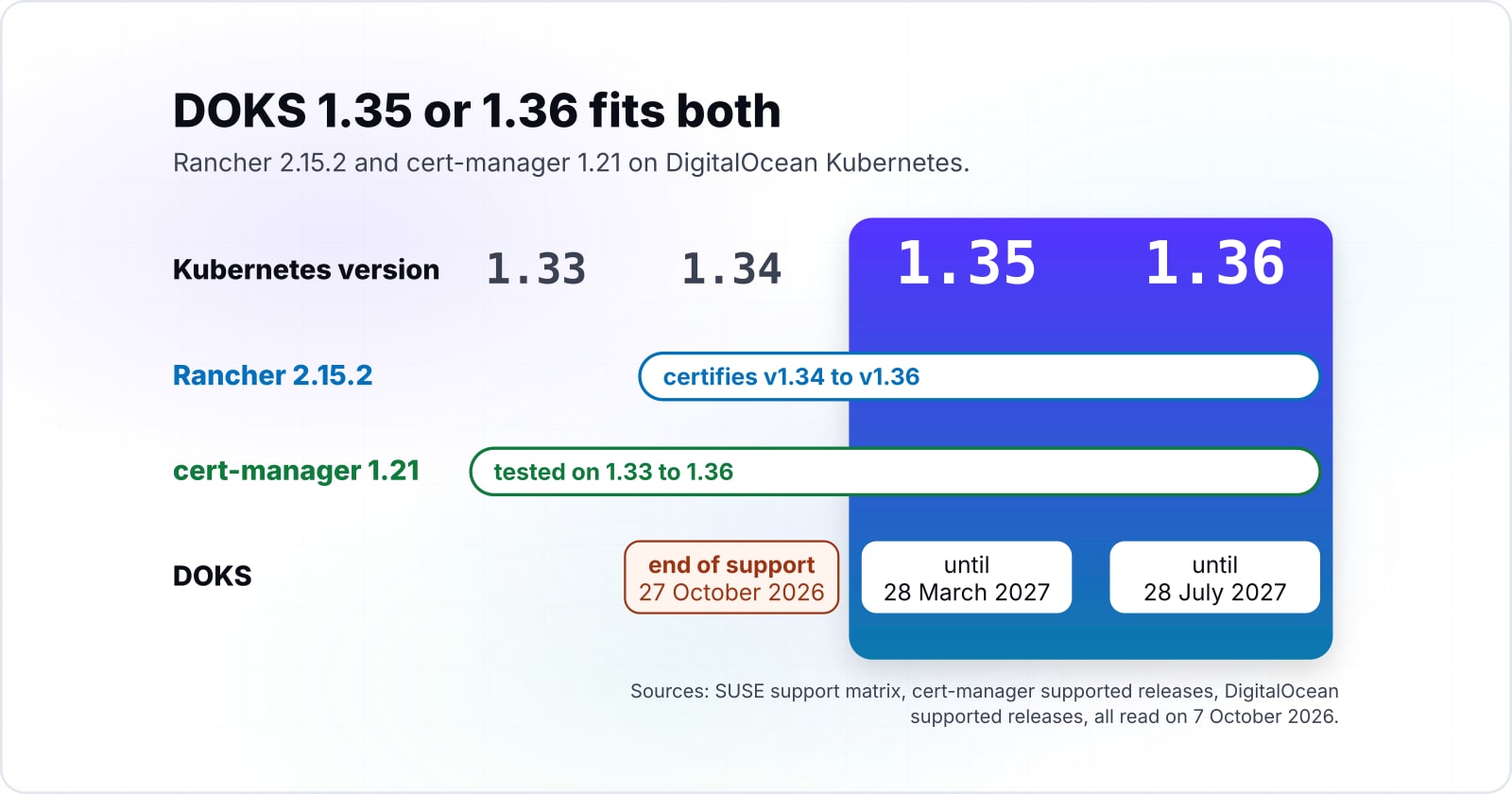
Rancher 2.15.2 certifies hosted clusters from Kubernetes v1.34 to v1.36 and cert-manager 1.21 is tested on 1.33 to 1.36, so DOKS 1.35 or 1.36 fits both. Both ranges come from the SUSE support matrix and the cert-manager supported releases page, read on 7 October 2026.
However, there is one gap in 2026. SUSE's matrix lists RKE2, K3s, AKS, EKS, GKE and ACK, and DOKS is not on it. Rancher runs on DOKS as standard Kubernetes, but SUSE does not certify it. As a result, staying inside the version range is the check you can control.
| Distribution | Lowest certified | Highest certified |
|---|---|---|
| RKE2 | 1.34 | 1.36 |
| K3s | 1.34 | 1.36 |
| AKS | 1.34 | 1.36 |
| EKS | 1.34 | 1.36 |
| GKE | 1.34 | 1.36 |
| ACK | 1.34 | 1.36 |
How long does each DOKS version stay supported?#
DOKS 1.34 reaches end of support on 27 October 2026 and DigitalOcean starts upgrading its clusters on 26 November, so a new cluster starts on 1.35 or 1.36. Those dates come from DigitalOcean's supported releases page, read on 7 October 2026.
Also, that page says clusters move up a minor release "30 days after the release they are running becomes unsupported". Because of that, the version you pick today sets the date of your first upgrade. For instance, DOKS 1.35 runs until 28 March 2027 and 1.36 until 28 July 2027 before upgrades begin.
Show data table
| Item | Value |
|---|---|
| DOKS 1.33 | 406 |
| DOKS 1.34 | 372 |
| DOKS 1.35 | 387 |
| DOKS 1.36 | 433 |
DOKS 1.36 runs longest, 433 days from release before upgrades begin.
Which ingress controller should Rancher use now that ingress-nginx is retired?#
Use Traefik for a new cluster, because ingress-nginx stopped receiving releases and security fixes when its repository was archived on 24 March 2026. An ingress controller is the proxy that routes outside traffic into the cluster. Rancher's console needs one, since it is served through an Ingress.
The ingress-nginx README put it plainly: "Best-effort maintenance will continue until March 2026." Instead, use Traefik, an open source proxy that also works as an ingress controller. By default it serves Ingresses with no class. Its Kubernetes Ingress docs say "If empty, resources missing the annotation, having an empty value, or the value traefik are processed." That matters because Rancher's Ingress carries no class.
Still running ingress-nginx? The helm install ingress-nginx command in its deploy guide is helm upgrade --install ingress-nginx ingress-nginx. Then set the controller to watch Ingresses with no class, and pass letsEncrypt.ingress.class=nginx to Rancher.
| Traefik | ingress-nginx | |
|---|---|---|
| Maintenance | Maintained | Archived 24 March 2026 |
| Ingress with no class | Served by default | Served once the controller watches them |
| Helm command | helm install traefik traefik/traefik | helm upgrade --install ingress-nginx ingress-nginx |
| Rancher class value | letsEncrypt.ingress.class=traefik | letsEncrypt.ingress.class=nginx |
Which documentation pages do you build this from?#
Build from 5 pages in this order: the DOKS load balancer annotations, the Traefik Helm chart, cert-manager's Helm install, the Rancher Helm install, and the Rancher chart options. Each one gives one piece of the commands below.
- DigitalOcean's load balancer guide: the Service annotations, including the hostname one.
- The Traefik Helm chart: the repository and
helm install traefik traefik/traefik. - The cert-manager Helm install: version v1.21.2 with
crds.enabled=true, which installs its custom resource definitions (CRDs). - Rancher's Helm install page: the chart repository and the Let's Encrypt option.
- The Rancher Helm chart options:
hostname,bootstrapPassword,replicasandletsEncrypt.ingress.class.
- Step 1
DOKS load balancer annotations
- Step 2
Traefik Helm chart
- Step 3
cert-manager's Helm install
- Step 4
Rancher Helm install
- Step 5
Rancher chart options
| cert-manager release | Lowest tested | Highest tested |
|---|---|---|
| 1.21 | 1.33 | 1.36 |
| 1.20 | 1.32 | 1.35 |
What are the exact Helm commands to install Rancher on DOKS?#
Five commands install the stack: Traefik with a load balancer hostname, cert-manager with its CRDs, Rancher with Let's Encrypt, then two checks that the rollout and certificate finished. Set your own hostname and email in the first two lines, then run each step in order.
export RANCHER_HOST="rancher.example.com"   # a DNS name you control
export ACME_EMAIL="<your-email>"             # Let's Encrypt expiry notices go here

# 1. Traefik as the ingress controller, behind a DigitalOcean load balancer
helm repo add traefik https://traefik.github.io/charts
helm repo update
helm install traefik traefik/traefik --namespace traefik --create-namespace
kubectl -n traefik annotate service traefik \
  service.beta.kubernetes.io/do-loadbalancer-hostname="$RANCHER_HOST"

# 2. Point an A record for $RANCHER_HOST at the EXTERNAL-IP shown here
kubectl -n traefik get service traefik

# 3. cert-manager with its CRDs, pinned to a release tested on 1.35 and 1.36
helm install cert-manager oci://quay.io/jetstack/charts/cert-manager \
  --version v1.21.2 --namespace cert-manager --create-namespace \
  --set crds.enabled=true

# 4. Rancher with a Let's Encrypt certificate served through Traefik
helm repo add rancher-stable https://releases.rancher.com/server-charts/stable
kubectl create namespace cattle-system
helm install rancher rancher-stable/rancher --namespace cattle-system \
  --set hostname="$RANCHER_HOST" \
  --set bootstrapPassword="change-me-now" \
  --set ingress.tls.source=letsEncrypt \
  --set letsEncrypt.email="$ACME_EMAIL" \
  --set letsEncrypt.ingress.class=traefik

# 5. Wait for the rollout, then check the certificate
kubectl -n cattle-system rollout status deploy/rancher
kubectl -n cattle-system get certificate
When the certificate shows READY as True, open the hostname and sign in with the bootstrap password. Also, save every --set value, because Rancher's install page says upgrades need the same options.
Why does the Rancher ingress or certificate fail on DOKS?#
Three DigitalOcean-specific breaks cause most failed installs: an Ingress with no ingressClassName, PROXY protocol on the load balancer, and in-cluster traffic that skips the load balancer. Each one has a short fix in the Rancher ingress configuration or the load balancer Service.
First, the missing class. Rancher's install page says the chart "does not set an ingressClassName on the ingress by default". Because of that, a controller that only serves its own class ignores Rancher, and the hostname never reaches it. Traefik's default fixes this.
Second, PROXY protocol, a header the load balancer adds so the proxy sees each client's real address. Since the DigitalOcean manifest for ingress-nginx turns it on, every request without that header gets dropped.
Third, the hairpin. DigitalOcean's PROXY protocol guide explains that in-cluster traffic to the external IP "is short-circuited by kube-proxy and never traverses the load balancer". Kube-proxy is the part of each node that routes Service traffic. As a result, a pod that calls the Rancher hostname from inside the cluster arrives with no PROXY header and gets dropped. The guide's fix is the hostname annotation from step 1.
Which ports does Rancher need on a hosted Kubernetes cluster?#
On a hosted cluster like DOKS, Rancher needs TCP 80 and 443 open inbound at the ingress, plus outbound 443 for its chart library and 6443 to each cluster API it manages. Those rows come from Rancher's port requirements page, read on 7 October 2026.
In practice, the Rancher port requirements on DOKS fit in one firewall check. Rancher's table lists inbound 443 for the console, the API and the Rancher agent. Finally, port 80 is listed for when a load balancer ends TLS in front of it. Meanwhile, DigitalOcean runs the control plane, so you do not open the node ports yourself.
| Direction | Port | What it serves |
|---|---|---|
| Inbound | TCP 80 | A load balancer that ends TLS in front of Rancher |
| Inbound | TCP 443 | The console, the API and the Rancher agent |
| Outbound | TCP 443 | git.rancher.io, the chart library |
| Outbound | TCP 6443 | Each managed cluster's API |
When is DigitalOcean Kubernetes not a fit for Rancher?#
Choose K3s or RKE2 instead of DOKS when you need a distribution SUSE certifies, and an air-gapped install when the cluster cannot reach the internet at all. Each case has a better tool than a hosted cluster.
First, if support terms matter more than a managed control plane, run Rancher on K3s or RKE2. Both are on the SUSE matrix, and Rancher's install page says they ship an ingress controller by default. Likewise, to install Kubernetes on Ubuntu DigitalOcean Droplets yourself, use RKE2 or K3s on those Droplets rather than DOKS.
For a Rancher offline install, follow SUSE's air-gapped Helm CLI install. There, you first publish every image to a private registry. In short, a DOKS cluster with a public load balancer is the wrong place for that.
Where to go from a running Rancher#
With Rancher running on DOKS, the next jobs are importing clusters, pinning upgrades to the support windows, and deciding who owns the platform day to day. Each one is a choice, not a default.
For example, if Rancher sits behind other services, the Caddy reverse proxy guide covers TLS at the edge. For a smaller app that does not need Kubernetes yet, see deploying Laravel on DigitalOcean with Forge. To reach an internal console without opening ports, read the Cloudflare Quick Tunnels guide. To run agent tasks as workloads on one of those clusters, see what the Google AX agent runtime needs from a Kubernetes cluster.
Also, our DevOps and CI/CD work covers building and running the cluster. You can also hire a DevOps software engineer to own it. Keeping all three inside their support windows is maintenance and support work. However, the five pages above are enough to do all of it yourself.